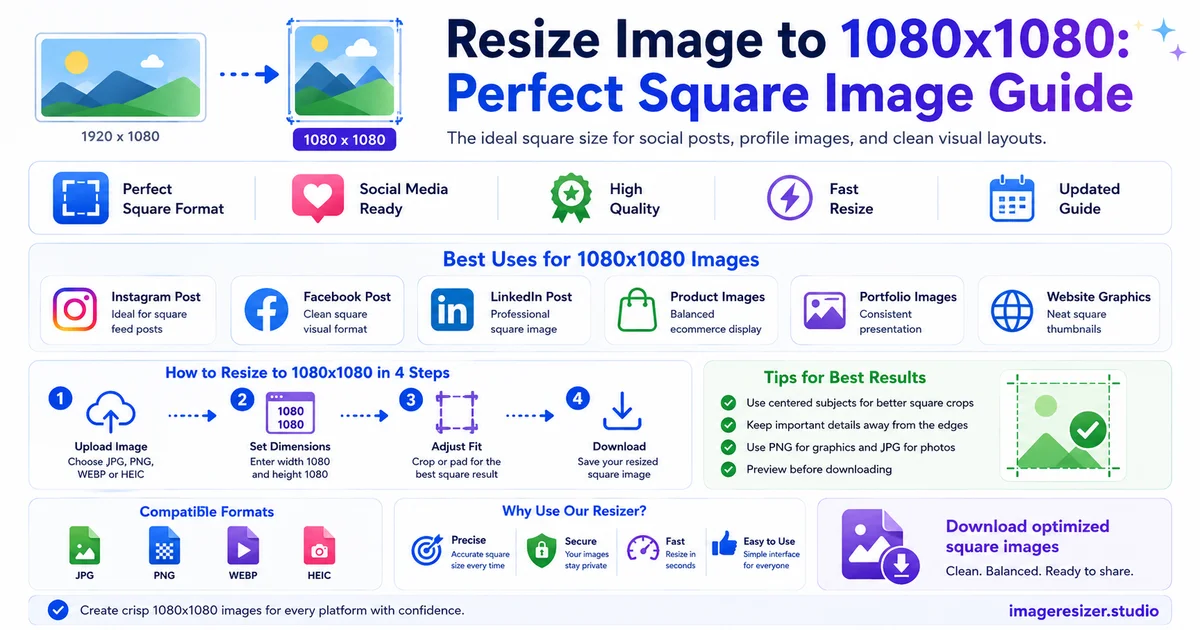
1080x1080 is the most useful pixel size on the modern internet.
It's the default Instagram square. It's the safe Facebook post. It's the LinkedIn share that doesn't get cropped. It's the WhatsApp DP. It's the Discord profile image. It's the universal "this image works almost everywhere" dimension.
Which is exactly why people resize to 1080x1080 more than any other size and why almost every social platform's default upload recommendation lands somewhere within a few pixels of it.
This guide walks you through how to resize any photo to a perfect 1080x1080 square, the cropping decisions that make or break the result and the workflow that takes about 30 seconds from start to finish.
Why 1080x1080 became the default square size
Three reasons it dominates.
Instagram standardized it
When Instagram switched from square-only to multi-aspect-ratio in 2015, they kept 1080x1080 as the recommended size for square posts. Every other platform that wanted Instagram-style content adopted the same dimension. Once a billion users got used to 1080x1080, everyone else followed.
It works on retina screens
1080x1080 is sharp on every modern phone display. The iPhone 17 displays at 460 PPI. A 1080x1080 image fills the feed view crisply without the file being unnecessarily large. Smaller (like 600x600) starts looking soft. Larger (like 2160x2160) wastes bandwidth without visible benefit.
It's the universal square
Whatsapp profile photos. Discord avatars. Slack workspace icons. LinkedIn carousel slides. Pinterest square pins. They all accept 1080x1080 as their preferred or recommended size. One file, every platform.
The hardest part: cropping a non-square photo into a square
Most photos aren't square. Your phone shoots 4:3 by default. DSLRs shoot 3:2. Cinematic videos are 16:9. Turning any of those into 1080x1080 forces a decision: what do you cut off?
There are three approaches.
Most online resizers default to center crop. If your subject sits dead-center in the frame, that's fine. If it doesn't, you'll need to manually shift the crop area before resizing or your subject ends up at the edge.
The 4-step workflow to resize to 1080x1080
Step 1: Pick your source photo
Use the highest quality version you have. If it's a phone photo, upload the original, not a screenshot of the photo or a shared WhatsApp copy. The starting quality decides the ending quality.
For best results, the source should be at least 1080 pixels on its shortest side. If your photo is 800x1200, you can't make a 1080x1080 from it without upscaling, which makes the image soft.
Step 2: Crop to square first
This is where most people skip a step and regret it. Don't just resize a 4:3 photo to 1080x1080. That stretches the image and makes everything look slightly squished, especially faces.
Crop to a 1:1 ratio first. Position the crop so your main subject stays in the visible square. Then resize the cropped square down to exactly 1080x1080.
Step 3: Resize the cropped square
Now that you have a square image at whatever size your original photo allowed (say, 1600x1600 after cropping a 1600x2400 photo), resize down to exactly 1080 pixels wide. Height auto-adjusts to 1080 since the aspect ratio is locked at 1:1.
Resizing down preserves quality. Resizing up does not. If your cropped square is smaller than 1080x1080 (say 900x900), you have to choose: upscale and accept slight softness, or use the image at its actual size.
Step 4: Export at the right quality
JPEG at 85-90% quality is the standard for social media. PNG only if you need transparency (rare for social photos).
The final 1080x1080 JPEG typically lands between 200 KB and 400 KB depending on detail. Anything over 1 MB means your quality is too high or you saved as PNG by accident.
Ready to resize your photo to 1080x1080 right now? Use the image resizer → for the fastest workflow with automatic dimension presets, or try the custom resizer → if you want to fine-tune crop position, quality and file size in the same window.
How 1080x1080 displays on each platform
Same dimensions, slightly different rendering across platforms.
Displays your 1080x1080 perfectly in the feed. In the profile grid, Instagram center-crops your square to fit a slightly smaller square. Keep important content away from the extreme edges.
Accepts 1080x1080 and displays it at full size in the feed. Facebook's compression is harsher than Instagram's, so push your JPEG quality to 90% to compensate.
1080x1080 works well for posts but LinkedIn's preferred dimension for feed images is actually 1200x1200. The difference is minor; 1080 still looks sharp.
Twitter/X
Single-image posts default to landscape orientation, so a 1080x1080 square gets letterboxed (top and bottom space) in some feed previews. Still uploads cleanly, just looks less optimized than a 1600x900 landscape image.
Accepts 1080x1080 but Pinterest favors portrait pins (1000x1500). A square pin gets less feed real estate than a tall pin. Use 1080x1080 only when your content genuinely fits a square shape.
Profile photos and avatars
1080x1080 is the sweet spot for any profile photo upload. Almost every platform displays profile photos at small sizes (40-200 pixels) but stores the source at 1080 to handle retina screens and future upscaling needs.
4 mistakes that ruin 1080x1080 resizes
1. Resizing without cropping first
Stretches the image. Faces look wider than they are. Logos lean. Always crop to 1:1 before resizing to 1080x1080.
2. Starting from a small source
If your original is 600x800, upscaling to 1080x1080 makes everything soft. Either find a higher-resolution version of the photo or use the image at its actual smaller size.
3. Forgetting subject placement
Center crop is the default. If your subject isn't in the center, the auto-crop will cut them out. Always preview the crop area before processing.
4. Saving as PNG for photos
A 1080x1080 photograph saved as PNG can be 4-5 MB. The same image as JPEG at 85% quality is 250 KB with no visible difference. PNG only makes sense for graphics with transparency.
Frequently Asked Questions
Why is 1080x1080 the most common social media image size?
Instagram standardized it as the default square dimension in 2015 and other platforms followed. 1080 pixels is also the sweet spot for retina screens: sharp enough to look crisp, small enough to load fast. The result is one dimension that works almost everywhere.
Can I upscale a small image to 1080x1080 without losing quality?
Not without some softness. Standard resizers can only invent pixels with basic interpolation, which makes upscaled images blurry. AI upscalers do a better job but still can't match a photo that was originally shot at 1080x1080 or higher. Always start with the highest-resolution source you have.
What's the difference between 1080x1080 and 1080x1350?
1080x1080 is a perfect square (1:1 ratio), best for grid-style posts and profile photos. 1080x1350 is portrait orientation (4:5 ratio), the largest size Instagram allows in the feed. Portrait posts take up more screen space on mobile, which usually means more engagement.
Will 1080x1080 work for all social media platforms?
Almost. Instagram, Facebook, LinkedIn, WhatsApp, Discord, Twitter/X all accept and display 1080x1080 well. Pinterest prefers portrait (1000x1500). YouTube prefers landscape (1280x720 for thumbnails). For 90% of social media uploads, 1080x1080 is the safe universal choice.
What file size should a 1080x1080 image be?
A 1080x1080 JPEG at 85% quality typically lands between 200 KB and 400 KB for a normal photograph. Detailed photos (textures, patterns) can hit 500-600 KB. If your file is over 1 MB, either your quality is set too high or you accidentally saved as PNG.
📚 Also Read
- How to Resize an Image to a Specific File Size (KB or MB)
- Resize Image to Passport Size: Country-Wise Requirements
- How to Bulk Resize Images: A Complete Batch Resize Guide
- Image Resizer for Social Media: Get the Perfect Size Every Time
- How to Resize an Image Online Without Losing Quality
Wrapping up
1080x1080 isn't going anywhere as the universal square size. Instagram, LinkedIn, Discord, Slack, WhatsApp all built their image rendering around it. Learn this one dimension and you've solved the bulk of social media uploading.
Pick your photo. Crop to 1:1 with your subject in the visible area. Resize the cropped square to 1080x1080. Export as JPEG at 85% quality. Upload.
30 seconds, end to end.