"File size must be under 100 KB."
Your image is 4.2 MB. The form refuses to accept it. You compress it. Now it's 380 KB. Still too big. You compress again. 142 KB. Close, but the form says no. You compress harder. Now it's 86 KB but the image looks like it survived a war.
Welcome to the most frustrating mini-game in the modern internet.
Forms with specific KB limits exist everywhere. Government applications. Job portals. Insurance uploads. University admission forms. Bank document uploads. Each one demands a precise file size and rejects anything outside the range. The instructions never tell you HOW to hit the target, just that you have to.
This guide solves it. You'll learn exactly how to resize and compress any image to a specific KB or MB target without destroying quality, the relationship between dimensions and file size and the workflow that hits any size on the first try instead of the tenth.
Why forms demand specific file sizes
There are three reasons your upload form is picky.
Server storage limits
Government and enterprise systems process millions of uploads per year. A 5 MB photo per applicant adds up fast. By forcing photos under 100 KB or 500 KB, they cut storage costs by 95%.
Database compatibility
Older government databases were built when 100 KB was a reasonable photo size. The size limits in the upload form match what the underlying database expects. Upload something bigger and the storage layer rejects it before a human ever sees it.
Bandwidth efficiency
If your application has to be processed by 50 different officials across multiple offices, each one downloads your photo. Multiply that by millions of applicants. Small files = faster processing = lower bandwidth costs.
None of these reasons help you when you're staring at a rejection message. But understanding them explains why the limits aren't going anywhere.
What actually determines image file size
File size isn't magic. It's the result of three things multiplied together.
Dimensions are your biggest lever. Halving width and height cuts file size by roughly 75% because you're keeping 25% of the pixels. Quality is your second lever. Format is the smallest lever but matters for format-locked uploads.
Three strategies to hit a specific KB target
Depending on your starting file and how strict the target is, you'll use one of three approaches.
Strategy 1: Direct file size targeting (fastest)
Some resizers let you enter "I want this file under 100 KB" and they handle everything automatically. The tool reduces dimensions and adjusts compression in tandem until the output hits the target.
Use this when: you have a tight target (under 200 KB), you don't have time to manually iterate, the source image is much larger than the target needs.
Strategy 2: Dimension reduction first, then quality
Calculate the dimensions you actually need (a 100 KB JPEG can comfortably hold a 600x800 pixel image at 85% quality). Resize the dimensions first. If the file is still too big, drop quality to 80%, then 75%. Stop when you hit the target.
Use this when: you want manual control over the trade-off between dimensions and quality, or when the form has BOTH a pixel dimension AND a file size requirement.
Strategy 3: Quality-only compression
Keep the original dimensions, just compress harder. Drop quality from 95% to 70% to 50% until the file is small enough.
Use this when: the form requires specific pixel dimensions you can't change. You're stuck adjusting only the quality. Works for moderate targets (1 MB and up) but breaks down for tight ones (under 200 KB) where the image becomes visibly damaged.
The dimension-to-file-size cheat sheet
Approximate JPEG file sizes at 85% quality, for general photos. Use this to figure out what dimensions you need for your target file size.
Reading this table backwards: if your form wants "under 100 KB," target around 600x800 dimensions at 85% quality. If it wants "under 500 KB," you can comfortably do 1200x1600. The numbers vary slightly based on how detailed your photo is, but this is the right ballpark.
The exact workflow to hit any file size target
This is the process that works whether your target is 20 KB or 5 MB.
Step 1: Read the form's requirements completely
Don't just see "under 100 KB" and start compressing. Check for everything: minimum file size (some forms reject files that are TOO small), maximum file size, required dimensions in pixels, required format (JPEG vs PNG), color mode (color vs black and white).
Write all requirements down before you start. Hitting one number while missing another means starting over.
Step 2: Pick your strategy
Use the cheat sheet above to figure out approximate dimensions for your target size. If the form ALSO specifies pixel dimensions, you don't have a choice. Use those exact pixels and adjust only the quality.
Step 3: Start from your highest quality original
Don't compress an image that's already been compressed. Find the original file. If it came off your phone, send it to yourself uncompressed (AirDrop on iPhone, original quality share on Android).
Step 4: Set dimensions and target file size
Use a resizer that lets you control both at once. Enter your target dimensions and your target KB. Good tools let you input "resize to 800x1000 and compress to 90 KB" as a single operation.
Step 5: Process and verify
Download the result. Check the file size in your file manager (right-click → Properties on Windows, Get Info on Mac). Open the image at 100% zoom and check if it still looks acceptable.
If the file is under the limit and the image looks fine, you're done. If it's still too big, drop dimensions by another 10% or quality by another 5% and re-export.
Step 6: Upload immediately
If you wait 3 weeks and try to upload, the form might have updated. The file requirements might have changed. The image you so carefully resized might no longer match. Upload while the requirements are still fresh in your head.
Want to skip the trial-and-error and hit your target file size on the first try? Use the free image resizer here →. Enter your exact KB target, drop your image in and download a perfectly sized file. No signup, no watermark.
Common file size targets and what they actually mean
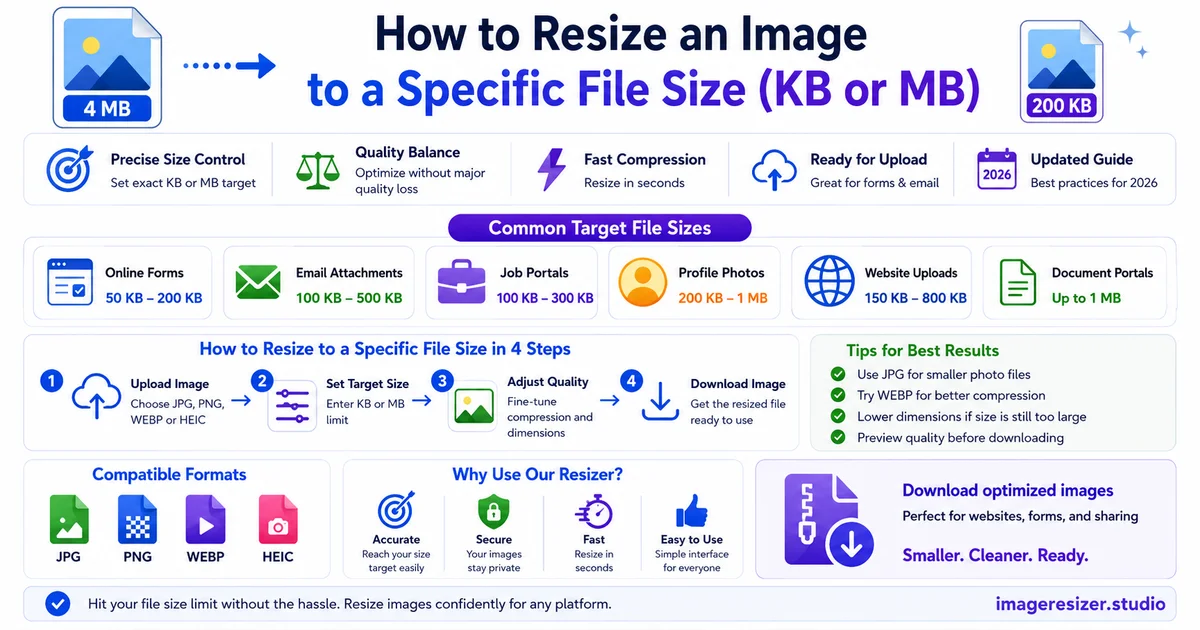
Different forms ask for different sizes. Here's what each common target lets you keep.
Under 20 KB
Very tight. Forces small dimensions (around 300x400 pixels at 80% quality) or aggressive compression on a larger image. Common for older government databases. Expect visible quality loss.
Under 50 KB
Still tight but more workable. Around 500x600 pixels at 80% quality. Common for ID card applications and some passport forms (India online forms, Singapore, China).
Under 100 KB
The most common government form limit. 600x800 to 700x900 pixels at 85% quality fits comfortably. Standard for most passport applications, driver's license uploads and visa forms.
Under 250 KB
Comfortable range. Allows 1000x1200 to 1200x1500 pixels at 85% quality with no visible damage. Common for US passport uploads, Canadian government forms and university admission portals.
Under 500 KB
Easy target. Lets you use 1200x1600 pixels at 90% quality. Most job application portals and professional certification uploads sit here.
Under 1 MB
Generous. You can use full social media dimensions (1080x1350 portrait at 90%) without thinking about it. Common for LinkedIn uploads and personal portfolio platforms.
Under 5 MB
Very generous. Original phone photos at slight compression fit easily. Standard for email attachments, Slack uploads and most modern web forms.
Related scenarios that use the same skills
Once you've nailed file size targeting, the same workflow handles a lot of common upload pain.
If you're applying for a passport specifically and need to match country-specific dimensions AND file size, here's the complete passport photo guide with country-by-country specifications for the US, UK, India, EU and 10 more countries.
If you have multiple images to compress for an entire application (resume photo, ID copy, certificate scans), the bulk image resizer guide shows you how to process all of them at once with the same file size target.
For social media uploads where the platform has both dimension and file size limits, the social media image sizing guide covers the exact requirements for Instagram, LinkedIn, Facebook and Twitter/X.
5 mistakes that make file size targeting harder
1. Compressing an already-compressed image
Every JPEG re-save loses some quality. If you take a 200 KB photo and compress it down to 50 KB, then need to make it even smaller, going from 50 KB to 30 KB introduces visible artifacts because you're compounding compression damage. Always start from the original source.
2. Resizing in tiny increments
Going from 4 MB to 3.5 MB to 3 MB to 2.5 MB takes forever. If your target is 100 KB, go straight to the right dimensions in one step instead of slowly shrinking. The cheat sheet above tells you where to aim.
3. Ignoring the format requirement
If the form requires JPEG and you upload a PNG, the form might accept it but the file will be huge. PNGs of photos are 3-5x larger than JPEGs at equivalent visual quality. Always export in the required format.
4. Forgetting to check both upper AND lower limits
Some forms have a minimum file size too ("between 20 KB and 100 KB"). If you over-compress to 8 KB to be "safe," the form rejects you for being too small. Stay comfortably inside the range, not at either extreme.
5. Not testing before submitting
Save your resized image to your desktop. Right-click and check the file size in properties. Don't trust the resizer's preview. The actual saved file is what counts.
When file size targeting gets impossible
Sometimes the requirements are mathematically tough to meet. If a form demands "1500x2000 pixels at 50 KB," you're being asked to fit a high-resolution photo into a very small file. The math fights you.
In those cases:
- Drop to JPEG quality 60-65% and accept some visible damage
- Check if the form REALLY needs the full pixel count (sometimes the minimum is much lower)
- Try the form anyway. Some forms have soft limits that accept up to 20% over
- If all else fails, contact the form admin and ask if there's flexibility
Most tight requirements are reasonable when you do the math. The impossible ones are usually outdated specifications that haven't been updated since 2008.
Wrapping up
Hitting a specific file size used to mean opening Photoshop, exporting, checking the size, going back to adjust, exporting again and doing that 8 times. A good online resizer that supports file size targeting eliminates the loop entirely.
Read the requirements completely. Pick the right dimension for your target using the cheat sheet. Set both dimensions and KB target in one operation. Verify the output. Upload.
Once you've done this a few times, you'll never fight a form's file size limit again. If you're new to resizing entirely, here's the foundations guide that walks through the basics before you start hitting specific size targets.