You're saving an image and your editor asks: JPEG, PNG, WebP or AVIF? Most people just pick whatever's first and move on.
That choice matters more than it looks. The wrong format can make your file 5 times bigger than it needs to be, strip out transparency you wanted, or wreck the sharp edges on a logo. The right one cuts your file size in half with no visible quality loss.
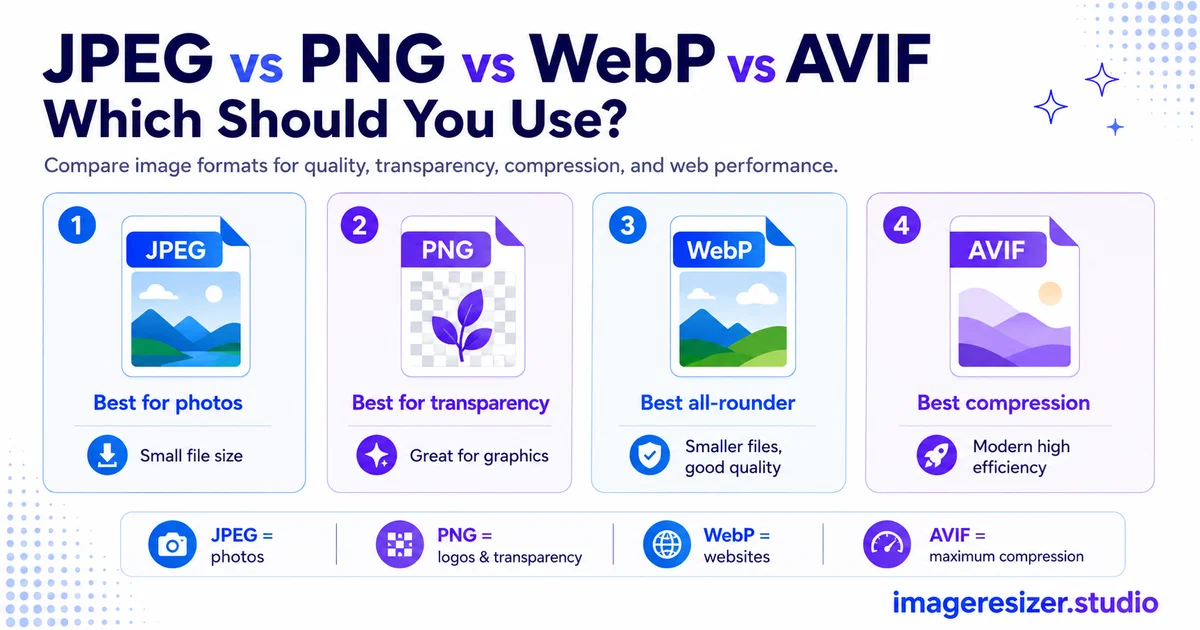
Four formats, four different jobs. JPEG is the old reliable. PNG is the lossless one for graphics. WebP is the modern all-rounder. AVIF is the new compression champion. Each wins in specific situations and loses badly in others.
This guide breaks down exactly what each format does, how they compare on size and quality and which one to pick for any situation. By the end you'll never guess at the dropdown again.
The quick answer
If you want the short version before the detail:
- Photos on the web: AVIF first, WebP fallback, JPEG as the final safety net
- Photos that need universal compatibility (email, print): JPEG
- Logos, icons, graphics with text: SVG if possible, otherwise PNG or lossless WebP
- Anything needing transparency: WebP or AVIF (or PNG for older support)
That covers most situations. But the why behind each choice helps you handle the edge cases, so here's the full breakdown.
JPEG: the universal veteran
JPEG has been around since 1992 and it's still the most widely supported image format on Earth. Every device, every browser, every app, every printer understands JPEG.
What JPEG does well
- Universal compatibility: works literally everywhere, including old email clients and print drivers
- Fast to encode and decode
- Good compression for photographs with smooth color gradients
- Small file sizes at reasonable quality settings
Where JPEG falls short
- Lossy only: it always throws away some data, so re-saving repeatedly degrades quality
- No transparency: JPEG has no alpha channel, so no transparent backgrounds
- Larger files than modern formats at the same visual quality
- Visible artifacts (blocky patches) when compressed too hard
Use JPEG when compatibility matters more than file size: email attachments, printable assets, social media uploads and anywhere you can't control which software opens the image. It's the safe choice that always works.
PNG: the lossless graphics format
PNG was created in 1996 as a lossless alternative to JPEG. It keeps every pixel perfectly intact, which makes it ideal for some images and terrible for others.
What PNG does well
- Lossless: no quality loss, ever, no matter how many times you save
- Transparency: full alpha channel support for transparent backgrounds
- Sharp edges: keeps text, lines and graphics crisp with no blurring
- Great for screenshots, logos, icons and diagrams
Where PNG falls short
- Huge file sizes for photographs (often 5 times larger than JPEG)
- No animation support (that's APNG, a separate thing)
- Overkill for photos where lossless quality isn't noticeable
Use PNG for graphics with sharp edges and text, screenshots, logos and anything needing transparency. Never use PNG for photographs on the web. A photo saved as PNG wastes enormous amounts of bandwidth for quality your eye can't see.
WebP: the modern all-rounder
Google released WebP in 2010 to replace both JPEG and PNG with a single, smaller format. After Safari added support in 2020, WebP reached effectively universal browser support. In 2026, more than 97% of users can see WebP images.
What WebP does well
- 25-35% smaller than JPEG at the same visual quality
- Does both lossy (for photos) and lossless (for graphics) in one format
- Supports transparency like PNG, but with much smaller files
- Supports animation, replacing GIF with smaller files
- Universal browser support since 2020
Where WebP falls short
- Still not universally supported in desktop apps (older Photoshop, Microsoft Office, some photo viewers)
- No print driver support
- Slightly slower to encode than JPEG
WebP is the best default for the web in 2026. It handles photos, graphics and transparency, all at smaller sizes than the older formats. The only reason not to use it is when a file leaves the browser for email, print or desktop software that doesn't understand it.
AVIF: the compression champion
AVIF, released in 2019, is built on the AV1 video codec (the same technology Netflix and YouTube use). It delivers the best compression of any widely supported format. By 2026 it covers more than 95% of browsers, with support in Chrome, Firefox, Safari and Edge.
What AVIF does well
- Up to 50% smaller than JPEG and 20-50% smaller than WebP at the same visual quality
- Supports transparency, HDR and wide color gamuts
- Does both lossy and lossless
- Best-in-class compression for photographic content
Where AVIF falls short
- Slower to encode than JPEG or WebP, which matters for real-time image processing
- Slightly lower browser coverage than WebP (95% vs 97%), so it needs a fallback
- Can blur very fine lines on sharp graphics at aggressive compression
- Quality settings aren't directly comparable to JPEG or WebP (AVIF quality 60 can look like WebP quality 80)
AVIF is the best choice for large, important photos where the extra file-size savings are worth it: hero images, product shots, photography portfolios. Pair it with a WebP and JPEG fallback so every browser gets something it can display.
Side-by-side comparison
Here's how the four formats stack up across the factors that matter most.
No single format wins everything. AVIF wins compression, JPEG wins compatibility, PNG wins sharp graphics, WebP wins as the balanced default. The smart move is to serve several and let each browser pick what it supports.
Want to compress or convert your images to a smaller format right now? Use the free image compressor → for quick one-click compression, or try the custom compressor → to control the exact quality and target file size. Both run in your browser with no upload to any server.
How to use multiple formats together (the fallback chain)
You don't have to pick just one format. Modern websites serve several and let each browser choose the best one it can display. This is the single most powerful technique for fast images.
The HTML picture element does this automatically. You provide an AVIF version, a WebP version and a JPEG version. The browser tries AVIF first, falls back to WebP if it can't and lands on JPEG if all else fails. Every visitor gets the smallest file their browser supports.
Most build tools, content management systems and image CDNs handle this chain automatically. You upload one image and the system generates all three formats and serves the right one. For a content-heavy site, this can cut total image weight by 70%.
If you want the full picture on optimizing images for speed, including responsive sizing and lazy loading, here's the complete guide to compressing images for website speed that covers the whole workflow beyond just format choice.
Which format to pick for every common situation
A photo for your website
AVIF if your platform supports it, with WebP and JPEG fallbacks. If you can only pick one, WebP gives the best balance of size and compatibility.
A photo for email or printing
JPEG. Email clients and print drivers don't reliably support WebP or AVIF. JPEG is the safe choice that always renders.
A logo or icon
SVG if it's a vector graphic, because it stays sharp at any size with a tiny file. If it has to be a raster image, use PNG or lossless WebP to keep the edges crisp.
A screenshot
PNG for screenshots with text and sharp UI elements, because lossless keeps everything readable. If the screenshot is mostly a photo, WebP works and saves space.
An image that needs transparency
WebP or AVIF for the web (smaller files with alpha support). PNG if you need it to work in older desktop software.
A profile picture or avatar
WebP for web platforms that accept it. JPEG as the universal fallback. These are stored once and shown many times, so the compression savings add up.
An animated image
Animated WebP for short loops and stickers (smaller than GIF with full color). For anything longer or heavier, MP4 video beats every image format by a wide margin.
Converting between formats the right way
Converting images between formats is common, but a few rules keep you from wrecking quality.
Converting to a smaller format
Going from JPEG or PNG to WebP or AVIF saves space with no visible quality loss when done right. The key is to convert from the highest-quality original you have, not from an already-compressed copy. If you also need to hit an exact file size after converting, here's how to resize an image to a specific KB or MB target.
Never convert lossy to lossy repeatedly
Each time you save a JPEG (or any lossy format), it loses a little quality. Converting JPEG to WebP to AVIF and back compounds the damage. Always start from the original and convert once to your target format.
Converting a whole batch at once
If you have a folder of images to convert to a single format, batch processing saves hours. The same logic behind the bulk image resize workflow applies to format conversion: set your output format once and apply it to every file in the folder.
Converting on the fly
For one-off conversions, a browser-based tool is fastest. If you're new to this, the guide to resizing an image online walks through the basic upload-adjust-download flow that format conversion follows too.
5 format mistakes that cost you speed or quality
1. Using PNG for photographs
This is the most common and most costly mistake. A photo saved as PNG can be 5 times larger than the same photo as WebP or JPEG. PNG is for graphics, not photos.
2. Sticking with JPEG and PNG in 2026
If your website still serves only JPEG and PNG, you're leaving 25-50% file-size savings on the table. WebP and AVIF compress dramatically better and are widely supported. Use them with fallbacks.
3. Using AVIF without a fallback
AVIF covers about 95% of browsers, not 100%. Serving AVIF with no fallback means a small slice of visitors see broken images. Always pair it with WebP and JPEG in a picture element.
4. Converting from an already-compressed file
Converting a low-quality JPEG to AVIF doesn't restore the lost quality, it just locks in the existing damage in a new format. Always convert from the highest-quality original you have.
5. Using WebP or AVIF for print or email
These formats are built for the web. Email clients and print drivers often can't read them. For anything leaving the browser, use JPEG (for photos) or PNG (for graphics).
Wrapping up
The format wars don't have a single winner because each format is built for a different job. AVIF compresses best. JPEG works everywhere. PNG keeps graphics sharp. WebP balances it all.
For the web in 2026, the answer is almost always to serve AVIF first, WebP as a fallback and JPEG as the final safety net, letting each browser pick. For email and print, use JPEG. For logos and sharp graphics, use SVG or PNG. For transparency, use WebP or AVIF.
Match the format to the job and your images come out small, sharp and fast, every time.