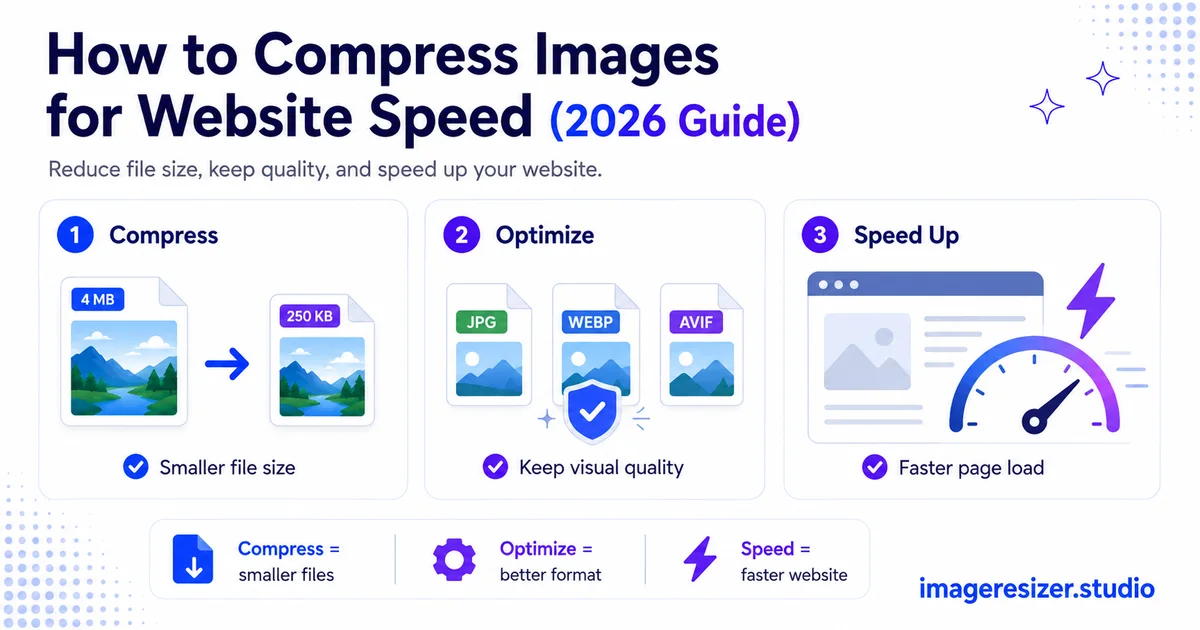
Images are the single biggest reason websites load slowly.
On the average web page, images make up more than half the total file size. A single uncompressed hero photo can weigh more than every line of code, every font and every script on the page combined. When that photo is 4 MB, your visitors wait. And waiting visitors leave.
Google knows this. Page speed is a ranking factor and image weight is the first thing their Core Web Vitals measure. Slow images hurt your rankings, your bounce rate and your conversions all at once.
The good news: you can usually cut image file sizes by 60-80% with zero visible quality loss. The trick is knowing what to compress, how far to push it and which format to use. This guide covers all three.
Why image compression matters more than almost anything else
Page speed isn't a vanity metric. It connects directly to money and rankings.
Speed affects rankings
Google uses Core Web Vitals as a ranking signal. The biggest of these, Largest Contentful Paint (LCP), measures how long the largest element on screen takes to load. That largest element is almost always an image. Compress it and your LCP score improves, which helps your search ranking.
Speed affects bounce rate
Studies consistently show that bounce rates climb sharply as load times rise. When a page takes 1 to 3 seconds to load, the probability of a bounce goes up by 32%. From 1 to 5 seconds, it jumps by 90%. Heavy images are the most common cause of those slow loads.
Speed affects conversions
Faster sites convert better. Every major ecommerce study has found the same pattern: shave a second off load time and conversions rise. For an online store, image compression can directly increase revenue.
How image compression actually works
Compression reduces file size by storing the image more efficiently. There are two fundamentally different approaches and knowing the difference is the key to keeping quality.
Lossy compression
Lossy compression throws away some image data permanently to make the file smaller. JPEG is the classic example. The trick is that it throws away the data your eye is least likely to notice first. At 85% quality, a lossy JPEG looks identical to the original to the human eye while being a fraction of the size.
Push lossy compression too far (below 70% quality) and you start seeing artifacts: blocky patches, fuzzy edges, banding in skies. The art is finding the point where the file is small but the damage is invisible.
Lossless compression
Lossless compression makes the file smaller without throwing away any data. The image is reconstructed perfectly. PNG uses lossless compression. The tradeoff is that lossless files are larger than lossy files, because they keep everything.
Use lossless for graphics, logos and images with sharp text where every pixel matters. Use lossy for photographs where the eye won't notice small losses.
Which compression to use: the decision guide
Pick the wrong format and you either bloat your file or wreck your image. Here's how to choose.
For modern websites, WebP is the default answer. It compresses better than JPEG and PNG while supporting both photos and transparency. The only reason to use anything else is fallback support for very old browsers.
Image formats for the web, ranked by use case
WebP (the modern default)
Developed by Google, WebP gives 25-35% smaller files than JPEG at the same quality and it supports transparency like PNG. It's supported by every modern browser. For most websites in 2026, WebP should be your first choice for nearly every image.
AVIF (the cutting edge)
AVIF compresses even better than WebP, often 50% smaller than JPEG. Browser support is now strong but not universal, so it works best with a WebP or JPEG fallback. Use AVIF when you want maximum compression and can set up fallbacks.
JPEG (the reliable fallback)
Still the most universally supported format for photographs. Use JPEG at 80-85% quality as a fallback for browsers that don't support WebP, or when you need guaranteed compatibility everywhere.
PNG (for graphics and transparency)
Lossless and great for logos, screenshots, graphics with text and anything needing transparency. The downside is large file sizes for photos. Never use PNG for photographs on the web unless you have a specific reason.
SVG (for logos and icons)
Not a compression format but worth mentioning. SVG is a vector format, so logos and icons stay razor-sharp at any size with tiny file sizes. Use it for anything that's a simple graphic rather than a photo.
Ready to compress your website images right now? Use the free image compressor → for quick one-click compression, or try the custom compressor → if you want to control the exact quality level and target file size. Both run in your browser with no upload to any server.
The step-by-step image compression workflow
This is the process for preparing any image for the web, from raw file to optimized upload.
Step 1: Resize before you compress
This is the step everyone skips and it's the most important. If your image is 4000 pixels wide but it displays at 800 pixels on your site, you're serving 5 times more pixels than anyone can see. Resize the image to the maximum size it will actually display at, then compress.
Resizing and compressing are different operations that work together. If you're unclear on how resizing differs from cropping and scaling, here's a clear breakdown of resize vs crop vs scale before you start optimizing.
Step 2: Pick the right format
Use the decision guide above. Photos get WebP (with JPEG fallback). Graphics and logos get PNG or SVG. Anything needing transparency gets WebP or PNG.
Step 3: Compress to the right quality
For lossy formats, 80-85% quality is the sweet spot. It removes most of the file weight while keeping the image visually identical. Test by comparing the compressed version to the original at 100% zoom. If you can't tell the difference, the compression is good.
Step 4: Check the file size target
As a rough guide, aim for these maximums on the web: hero images under 200 KB, regular content images under 100 KB, thumbnails under 30 KB. If you're over, either compress harder or resize the dimensions down further.
Step 5: Serve responsive sizes
Advanced but powerful. Instead of one image for all devices, serve smaller versions to phones and larger versions to desktops using the srcset attribute. A phone doesn't need a 1920px image. This alone can cut mobile image weight in half.
Step 6: Enable lazy loading
Add loading="lazy" to images below the fold. The browser only loads them as the user scrolls down to them, which speeds up the initial page load dramatically. It's a one-attribute change with a big payoff.
6 image compression mistakes that slow sites down
1. Compressing without resizing first
Serving a 4000px image that displays at 800px wastes huge amounts of bandwidth. Resize to display dimensions before compressing. This is the single biggest win for most sites.
2. Using PNG for photographs
A photo saved as PNG can be 5 times larger than the same photo as a well-compressed JPEG or WebP. PNG is for graphics and transparency, not photos.
3. Over-compressing into visible artifacts
Pushing JPEG quality below 70% to save a few KB introduces blocky artifacts and fuzzy edges. The few kilobytes you save aren't worth a visibly degraded image. Stay at 80-85%.
4. Forgetting mobile users
Serving desktop-sized images to phones wastes mobile data and slows phone load times. Use responsive images with srcset so each device gets an appropriately sized file.
5. Not using next-gen formats
Sticking with JPEG and PNG in 2026 leaves 25-50% file size savings on the table. WebP and AVIF compress dramatically better and are widely supported. Use them with fallbacks.
6. Skipping lazy loading
Loading every image on a long page immediately forces the browser to download images the user may never scroll to. Lazy loading below-the-fold images speeds up the critical initial load.
Tools and automation for ongoing compression
Manual compression works for a handful of images. For a real website with hundreds or thousands of images, you want some automation.
For one-off images
A browser-based compressor is fastest. Drop the image in, compress, download. No software, no upload to a server if the tool processes locally.
For batches of images
If you're optimizing a folder of images at once, batch processing saves hours. The same logic that applies to compressing images on your phone applies to batch desktop work: set your rules once, apply to every file.
For ongoing website use
WordPress plugins (like ShortPixel, Imagify, or Smush) compress images automatically on upload. Image CDNs (Cloudinary, ImageKit, Cloudflare Images) compress and convert to WebP or AVIF on the fly. For a content-heavy site, automation pays for itself fast.
A note on print images
Everything in this guide is about web compression, where smaller is better. If you're preparing images for print instead, the rules flip completely and you want maximum quality. Here's the separate guide to resizing photos for printing where compression is the enemy rather than the goal.
Wrapping up
Image compression is the highest-impact, lowest-effort thing you can do for website speed. Most sites are serving images 3 to 5 times larger than they need to be, so fixing that costs nothing but a few minutes per image.
Resize to display size first. Pick WebP for almost everything. Compress to 80-85% quality. Serve responsive sizes to mobile. Lazy load below the fold. Do those five things and your pages will load faster, rank better and convert more.
Your images can be a fraction of their current size with quality your visitors will never notice was reduced.