You need to resize a photo right now. It's on your phone. And you do not want to download yet another app that wants your email, shows you ads and asks for a subscription after the first use.
Good news: you don't need one. Both iPhone and Android can resize images using tools already built into your phone. And for anything more precise, a browser-based resizer works without installing anything at all.
This guide walks you through every method. The built-in iPhone way. The built-in Android way. The no-install browser way that works on both. Plus the quality traps that quietly ruin photos when you resize on mobile.
Why you'd resize a photo on your phone in the first place
Most resizing used to happen on computers. Now most photos live on phones and never touch a desktop. So the resizing has to happen there too.
Common reasons people resize on mobile:
- A form won't accept a photo because it's too large
- An email attachment is over the size limit
- A website upload needs specific dimensions
- A photo needs to fit a profile picture slot
- You want to free up storage by shrinking large photos
- A messaging app keeps compressing and ruining your image
The phone camera shoots at huge resolutions now (4000 pixels wide or more), which is great for quality but terrible when something demands a small file. That gap is why mobile resizing matters.
How to resize an image on iPhone (built in, no app)
iPhones don't have a dedicated resize button, but there are two built-in ways to do it. Neither needs an app.
Method 1: Using the Photos app crop tool
This changes dimensions by cropping, best when you want to change the shape or trim the image.
- Open the Photos app and tap the image you want to resize
- Tap Edit in the top right corner
- Tap the crop icon at the bottom (it looks like a square with arrows)
- Tap the aspect ratio icon in the top right to pick a preset ratio, or drag the corners manually
- Tap Done to save
This crops rather than scales, so it's perfect for fitting a square profile photo or trimming to a specific aspect ratio. It won't reduce the file size much on its own.
Method 2: Using the Files app (to actually shrink file size)
This is the hidden trick most iPhone users don't know. The Files app can compress images through the Markup feature, though it's indirect.
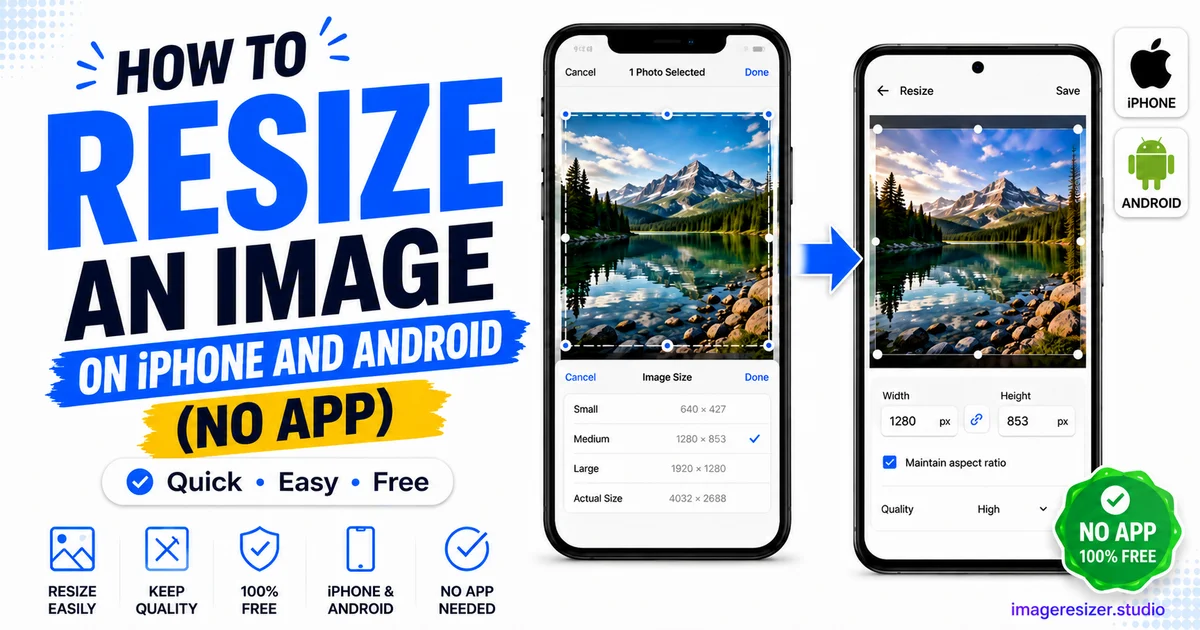
The simpler route for shrinking file size on iPhone is to email the photo to yourself. When you attach a photo in Mail, iOS offers a size choice (Small, Medium, Large, Actual Size) right before sending. Pick a smaller option and email it to yourself, then save the smaller version back to your phone.
It's clunky, but it works without installing anything. For real control over exact dimensions and file size, a browser resizer (covered below) beats both built-in methods.
How to resize an image on Android (built in, no app)
Android handles this more directly than iPhone, though the exact steps vary slightly by manufacturer (Samsung, Google Pixel, OnePlus all have small differences).
Method 1: Using Google Photos
Google Photos comes pre-installed on most Android phones and has a built-in crop and resize function.
- Open Google Photos and tap the image
- Tap Edit (the slider icon at the bottom)
- Tap Crop
- Choose an aspect ratio or drag the corners to crop manually
- Tap Save copy to keep the original and save the resized version
Method 2: Using the built-in Gallery app (Samsung and others)
Samsung's Gallery app has a direct resize option that actually changes pixel dimensions and file size, not just crop.
- Open Gallery and tap the image
- Tap the three-dot menu in the corner
- Tap Resize image (Samsung shows percentage options like 50%, 75%)
- Pick a size and tap Save
This is the cleanest built-in resize on any phone. Samsung users have it easiest. If your Android brand doesn't have a resize option in Gallery, use the browser method below instead.
The no-install method that works on any phone
The most reliable way to resize on mobile, with the most control, is a browser-based resizer. It works identically on iPhone and Android because it runs in Safari or Chrome, not as an app. Nothing to install, no storage used, no ads asking for your email.
The workflow is the same on both platforms:
- Open your phone browser and go to an online image resizer
- Tap to upload the photo from your camera roll
- Enter your target dimensions in pixels, or a target file size in KB
- Lock the aspect ratio so the photo doesn't stretch
- Download the resized image straight back to your phone
If you've never done this before, here's a full walkthrough of resizing an image online that covers the basics on both desktop and mobile before you tackle anything platform-specific.
The big advantage of the browser method: it gives you exact control. Built-in phone tools mostly crop. A proper resizer lets you hit precise pixel dimensions and specific file sizes, which is what most upload forms actually require.
Want to resize a photo on your phone right now? Open the image resizer in your mobile browser → for quick dimension presets, or use the custom resizer → if you need to set an exact pixel size or file size. Both work on iPhone and Android with no install.
Resizing for specific situations on mobile
Different goals need slightly different approaches. Here's how to handle the most common ones from your phone.
Shrinking a photo to meet a file size limit
When a form says "max 100 KB" and your phone photo is 4 MB, you need to target a specific file size, not just crop. Here's the complete guide to resizing an image to a specific KB or MB target, which works the same way from your phone browser as it does on desktop.
Preparing a passport or visa photo
Government photo uploads have strict dimension and file size rules that vary by country. The country-by-country passport photo guide covers the exact specifications, and you can hit all of them from your phone without a computer.
Resizing a photo you plan to print
Printing is the one case where you want to be careful on mobile, because phone photos need enough pixels to stay sharp on paper. The photo printing resize guide explains the DPI math and the minimum dimensions for each print size before you send anything to a print lab.
The mobile quality traps to avoid
Resizing on a phone has a few hidden ways to silently ruin your photo. Watch for these.
1. The WhatsApp compression trap
If you send a photo through WhatsApp, then save it and resize that version, you're working with an already-compressed image. WhatsApp strips quality on send. Always resize from the original in your camera roll, never from a version that's passed through a messaging app.
2. The screenshot trap
Taking a screenshot of a photo to crop it seems quick, but screenshots match your screen resolution, not the photo's actual resolution. You lose pixels. Always work from the original photo file.
3. The repeated-save trap
Every time you edit and re-save a JPEG on your phone, it loses a little quality. Editing the same photo five times compounds the damage. Make all your changes in one editing session, then save once.
4. The upscale trap
If you crop a photo heavily and then try to make it bigger again, your phone invents pixels and the result looks soft. Resize down from a large original. Never crop tight and then scale back up.
iPhone vs Android: which is easier for resizing?
Honest answer: Android is slightly easier for built-in resizing, iPhone needs the workaround.
Android (especially Samsung) has a direct "resize image" option that changes actual pixel dimensions in the Gallery app. iPhone only has crop in the Photos app, so you have to use the email-to-yourself trick or a browser resizer to truly shrink file size.
For both platforms, the browser method wins when you need precision. The built-in tools are fine for quick crops and rough resizing, but they can't target an exact file size in KB, which is what most upload forms actually demand. When precision matters, the browser resizer is the same easy experience on both phones.
Wrapping up
You don't need to install anything to resize a photo on your phone. iPhone has crop in Photos and the email size trick. Android has Google Photos crop and (on Samsung) a direct resize option. And both can use a browser resizer for exact pixel dimensions and file sizes.
For a quick crop, use the built-in tools. For precise dimensions or a specific file size limit, open a browser resizer. Either way, start from the original photo, make your edits in one pass and save once to keep the quality intact.
No app, no ads, no subscription. Just a resized photo in under a minute.