Resize, crop and scale get used as if they mean the same thing. They don't.
Pick the wrong one and your photo ends up stretched, your subject gets cut in half, or your image turns into a blurry mess. Pick the right one and you get exactly the result you pictured.
The confusion is understandable. All three change how an image looks and all three live in the same editing menus. But each does something fundamentally different to your pixels. Knowing which is which saves you from the most common photo-editing mistakes.
This guide explains what each one actually does, shows you when to use which and walks through the real-world situations where picking the right tool matters.
The 30-second version
Before the detail, here's the core difference in one line each.
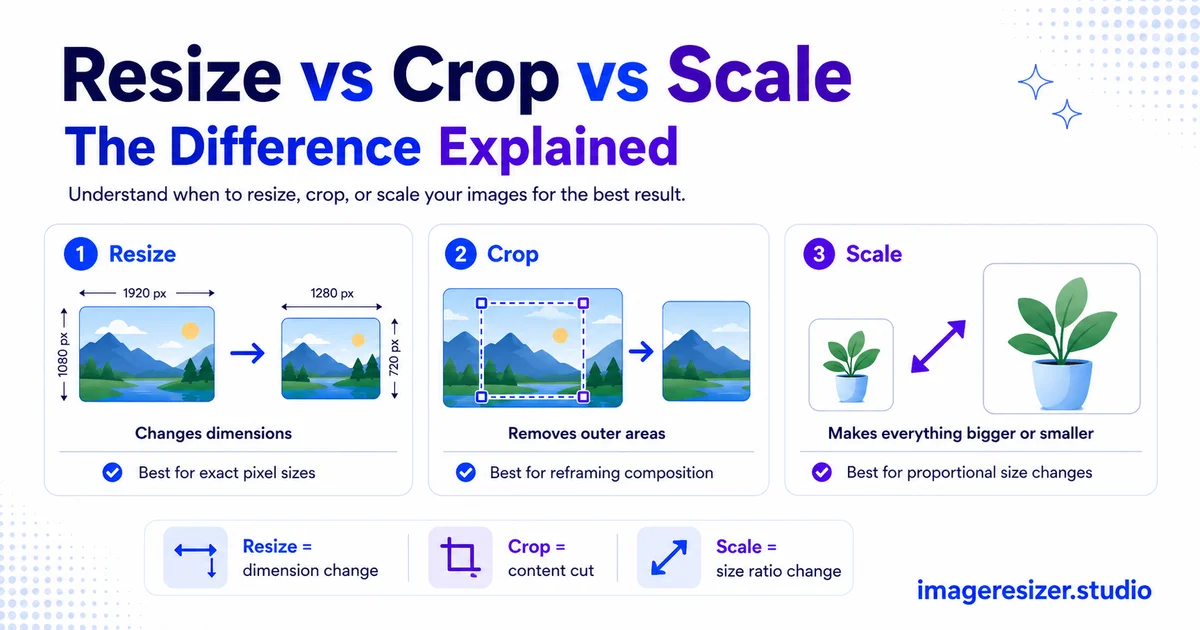
- Resize: changes the pixel dimensions of the whole image (makes the entire picture bigger or smaller)
- Crop: cuts away part of the image (changes what's in the frame, removes the rest)
- Scale: changes the display size without necessarily changing the underlying pixels (zooms the view in or out)
Resize keeps everything but changes the dimensions. Crop keeps the dimensions feel but throws away content. Scale changes how big it looks without changing what it is. Three different actions for three different goals.
Visual: what each one does to the same photo
The clearest way to understand the difference is to see the same image put through all three.
Resize shrinks the whole image and keeps everything. Crop throws away the parts you don't want and keeps only the subject. Scale changes how large the image appears without changing the actual content.
What resizing actually does
Resizing changes the pixel dimensions of the entire image. A 4000x3000 photo becomes 1000x750. Everything in the frame stays, just smaller (or larger).
This is the most common operation and the one most people actually need. When a form wants "800x600 pixels" or a website says "max 1MB," you resize. The whole image gets scaled down proportionally and nothing gets cut.
The key rule of resizing: keep the aspect ratio
When you resize, lock the aspect ratio. A 4:3 photo should stay 4:3 when it gets smaller. If you change width and height independently, you stretch the image and everything looks distorted. Faces get wide, circles become ovals, text leans.
Resize down vs resize up
Resizing down (big to small) keeps quality. You're throwing away pixels you don't need, so the result stays sharp. Resizing up (small to big) hurts quality. The software has to invent pixels that were never there, which makes the image soft and mushy. Always resize down when you can.
If you need to resize to fit a specific file size limit rather than specific dimensions, here's the complete guide to resizing an image to a specific KB or MB target, which handles the dimension-and-compression math for you.
What cropping actually does
Cropping cuts away part of the image. You select a region to keep and everything outside it gets deleted. The pixels that remain stay at their original quality.
Crop when you want to change what's in the frame. Remove a distracting background. Cut out a photobomber. Tighten the composition around your subject. Change the aspect ratio (turn a landscape photo into a square for Instagram).
Cropping changes composition, not just size
This is the key difference from resizing. Resizing keeps the whole scene and shrinks it. Cropping changes the scene itself by deciding what stays and what goes. A tight crop on a face tells a completely different story than the wide shot it came from.
Cropping reduces total pixels
When you crop, you keep fewer pixels than you started with. Crop a 4000x3000 photo down to just the center subject and you might be left with 1500x1000. That's fine for screen use, but if you then need to print large, you might not have enough pixels left. Crop with your final use in mind.
What scaling actually does
Scaling is the most misunderstood of the three because it means slightly different things in different programs.
In most design software, scaling changes the display size of an image without changing its underlying pixel data. You're zooming the view, not editing the file. Scale a logo up to 200% on a canvas and the file's actual resolution doesn't change, just how big it appears in your layout.
In some contexts, scaling and resizing are used interchangeably, which is where the confusion comes from. The practical distinction: resizing permanently changes the pixel dimensions of the saved file. Scaling often just changes the display size within a document or design, leaving the source file untouched.
When scaling matters
Scaling is mostly a design and layout concern. If you're placing an image in a poster, a presentation, or a web page, you scale it to fit the space without altering the original file. The image can be scaled differently in different places while the source stays the same.
For most everyday tasks (preparing a photo for upload, hitting a file size, fitting a profile picture), you want resize or crop, not scale.
Need to resize or crop an image right now? Use the image resizer → for quick dimension changes, or try the custom resizer → if you want to crop, set exact dimensions and adjust file size all in one place.
When to use each one
Here's the decision guide for the most common situations.
Use resize when:
- A form or website asks for specific pixel dimensions
- You need to reduce file size to meet an upload limit
- You want to keep the entire image but make it smaller
- You're preparing a photo for the web and it's too large
Use crop when:
- You want to remove something from the frame
- You need to change the aspect ratio (landscape to square, for example)
- You want to tighten composition around your subject
- You're making a profile photo from a wider shot
Use scale when:
- You're placing an image in a layout or design
- You want to change display size without editing the source file
- You're working in presentation or page-design software
Often you'll use two together. Crop first to fix the composition, then resize to hit the exact dimensions or file size you need. That combination handles most real-world photo prep.
4 mistakes people make mixing these up
1. Stretching instead of resizing
Changing width and height independently isn't resizing, it's stretching. The image distorts. Always lock the aspect ratio so the proportions stay correct when you change the size.
2. Cropping when they should resize
If a form wants 800x600 and you crop your photo to those dimensions, you've thrown away part of the image unnecessarily. If the whole scene mattered, you should have resized instead. Crop only when you actually want to remove content.
3. Resizing up and expecting magic
Taking a small image and resizing it larger doesn't add detail. It invents soft, mushy pixels. If you need a bigger image, start from a larger original. No resize operation can recover detail that was never captured.
4. Cropping away pixels they'll need later
Crop a photo tight for Instagram and later try to print it large, then you'll find you don't have enough pixels left. Keep an uncropped original of important photos so you have options later.
Applying these across lots of images at once
Everything above applies to single images. When you have dozens or hundreds to process the same way, the principles stay identical but the workflow changes.
If you need to resize a whole folder of photos to the same dimensions, the bulk image resize workflow lets you apply one set of rules to every image at once instead of doing them one at a time. The resize-vs-crop logic is the same, just applied in batch.
And if you're doing all this from your phone rather than a computer, here's how to resize an image on iPhone and Android using built-in tools and the no-install browser method.
Wrapping up
The three words sound similar but they solve different problems. Resize changes the dimensions of the whole image. Crop changes what's in the frame by cutting content away. Scale changes how big the image displays without altering the source file.
For most uploads and forms, you want resize. For fixing composition or changing aspect ratio, you want crop. For layout and design work, you want scale. And for the trickiest jobs, crop first to frame it right, then resize to hit your exact target.
Get the right tool for the job and your images come out exactly how you pictured them, every time.